Feedback
Feedback is appreciated! If you have any feedback, please feel free to share on Slack.
Guide
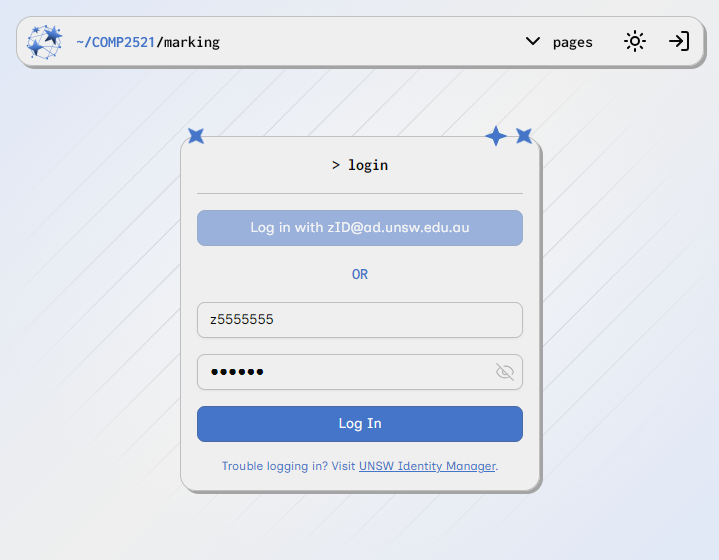
1. Go to https://comp2521-marking.up.railway.app/ and log in. You will be redirected to the Marking Requests page.
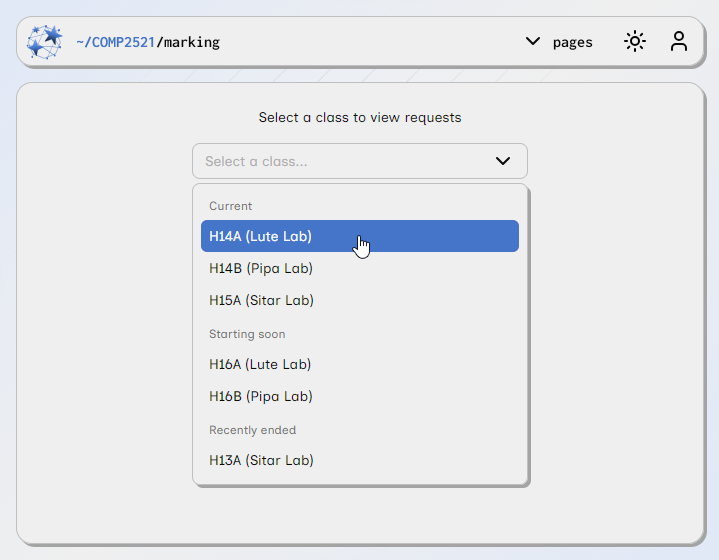
2. Select a class to view the marking requests made under that class.
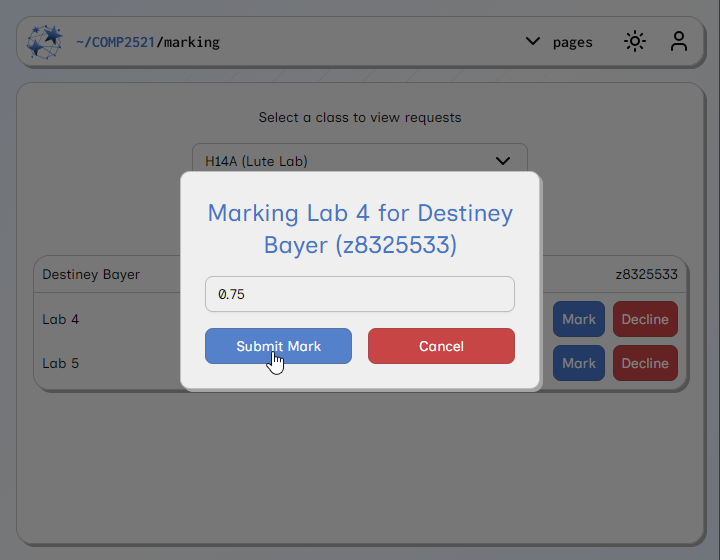
3. To enter a mark for a marking request, click the Mark button, enter a mark, and then click the Submit Mark button. The student will be able to see the mark on their submissions page the following day.
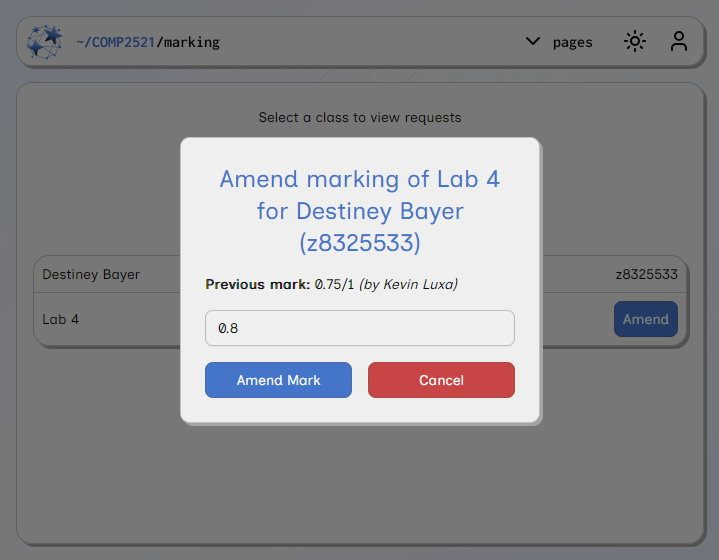
4. If you have entered the wrong mark, you can amend it by switching to the Closed requests tab, clicking the Amend button next to the request in question, and entering a new mark.
5. If you cannot find a student or a student has selected the wrong activity, you can decline their marking request by clicking the Decline button and selecting a reason. The student will be notified.
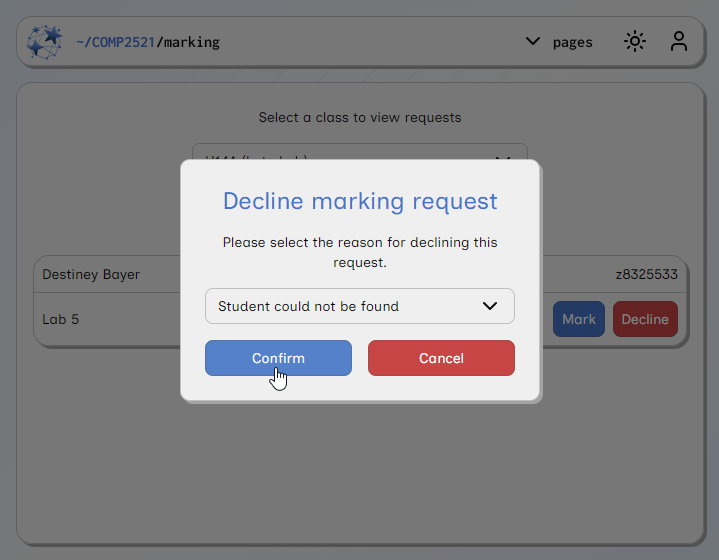
6. If a student has a valid reason for getting their lab marked late (e.g., special consideration), you can create a manual marking request for them on the Student Search page. Open the Pages menu in the navbar and click Student Search.
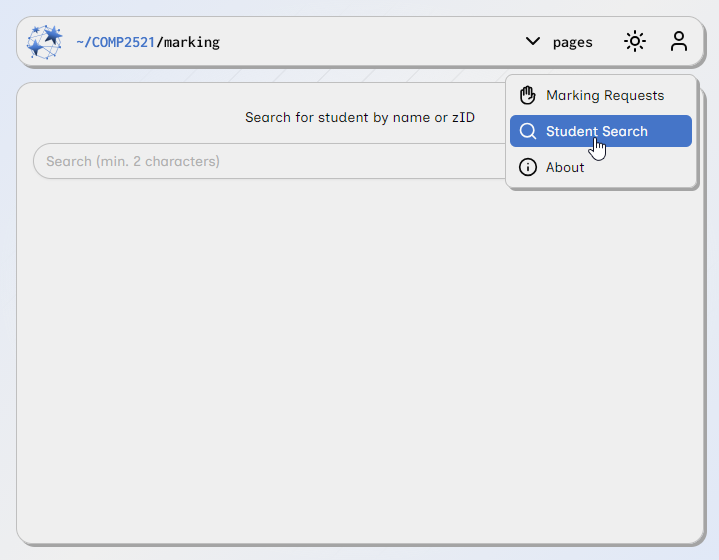
7. Enter the student's name or zID in the search bar, and then click the Mark button next to their name in the results.

8. Enter a reason for the manual marking request, select an activity, and then enter a mark. After you submit, the request will be visible to admins, who can then approve or deny it.

9. The View button allows you to see all of the student's subjective lab marks, and the History button allows you to see the audit log for that student.
Resource created Monday 02 March 2026, 04:57:21 PM, last modified Thursday 26 March 2026, 05:06:24 PM.